Care to Upgrade


Installing RAM Upgrades

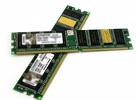
Adding memory to a system is one of the most useful upgrades you can perform, and also one of the least expensive. Upgrading memory can boost your computer's performance by 50%. Although the computer may function with 512MB of RAM or even less, generally 1024MB is a reasonable minimum. Especially computers running under Windows XP and Windows Vista should have at least this much, but you should see a performance improvement with 2048MB of RAM.

Not all computer memory is the same. Most computers in use today use DDR or DDR2 types of memory for their main system memory. It's not only important to purchase RAM that's compatible with your computer, it's important to choose top quality RAM. A small dose can give your computer's performance a big boost.

How do you add memory? You have three options, listed in order of convenience and cost:

  • Adding memory in vacant slots on your motherboard
  • Replacing your current motherboard's memory with higher-capacity memory.
  • Purchasing a memory expansion card (not a cost-effective solution for any system currently on the market.)

    Types of memory:

  • RDRAM (Rambus):

    A high speed technology currently available for Pentium 4 systems

  • DDR2 (Double Data Rate 2)

    This is an improved version of DDR memory that is faster and more efficient.

  • DDR (Double Data Rate)

    A high speed version of SDRAM, compatible with many Athlon & Intel Pentium 4 systems

  • SDRAM (Synchronous Dynamic Ram)

    Used in most Pentium, Celeron, Athlon,and Duron class sysytems running at 233MHz or higher.


  • Processor Upgrades

    Processor upgrades can been relatively easy for most computers. To maximize your motherboard, you can almost always upgrade to the fastest processor your particular board will support. Normally, that can be determined by the type of socket on the motherboard. Older motherboards may not meet the electrical and mechanical requirements for newer processors. It is necessary to verify the supported processors with the manufacturer of your PC or third-party motherboard.

    Upgrading the processor can, in some cases, double the performance of a system. However, if you already have the fastest processor that goes in your motherboard socket, you really should look into a complete motherboard change.

    If your chassis design is not proprietary and your system uses an industry standard Baby-AT or ATX motherboard design, I normally recommend changing the motherboard and processor rather than trying to find an upgrade processor that will work with your existing board.

    Please be aware that Microsoft OEM operating system software cannot be transferred from another computer. If the motherboard is upgraded or replaced for reasons other than a defect then a new computer is created, and a new operating system license is required. If the motherboard is replaced because of a defect, the user does not need to acquire a new operating system license for the computer. The motherboard replacement must be the same make and model, or the same manufacturer’s replacement or equivalent, as defined by that manufacturer’s warranty. The reason for this licensing rule primarily relates to the end-user license agreement (EULA) and the support of the software covered by that EULA. The EULA is a set of usage rights granted to the end-user by the computer manufacturer. The EULA relates only to rights for that software as installed on that particular computer. Read more ....http://support.microsoft.com/kb/824125/en-us#


    Windows Upgrades

    In some cases, you might want to upgrade the Windows OS rather than performing a clean installation. When you upgrade the OS, you replace the old one with a new version. The main advantages to performing an upgrade rather than purchasing a full version are the lower cost of the installation disk and the fact that you can keep most of the existing applications and settings. That is, when you upgrade from one Windows OS to another, all your settings, applications, and nonsystem files are migrated into the new OS.

    However, I typically recommend that you perform a clean installation whenever possible to eliminate the migration of problems from the old OS to the new OS.

    Before you perform an upgrade, it's a good idea to back up your computer in case the upgrade fails and you are left without an OS. You must also ensure that your computer has a sufficient OS to upgrade to the new OS. These are called upgrade paths.